A Shortcut is the Longest Distance Between Two Points
Working smarter and faster is a skill – a shortcut is the polar opposite.
By Collyer Spreen, Senior Solutions Architect
Start With a Pro Tools Session Template
Most efficient DAW users start a mix (or any session) with a template – starting with a template greatly reduces the menial task of setting up the tracks, groups, VCAs, Folders, and send-returns we all use in the mixer. If you don’t use a template, then you are spending a lot of time doing repetitive house-keeping work that you could do once, save it as a template, and use it for every session after that. Easily edited/updated whenever your mix flow changes, it’s an efficient time-suck eliminator, but better yet, it trades out time wasted on drudgery for time invested in being creative and trying out cool stuff. Your call, of course.
Create Aux Sends and Returns Without Opening I/O Setup
One thing I do in Pro Tools is start with only the busses necessary for all of my template routing, and nothing more, except basic quarter note, eighth note, etc delay lines, that haven’t been assigned yet. Notice everything is in bold text except the delay lines, which means all but those are active in the session. And once I start the mix using this template, I almost never open the IO setup window, unless I’m using a new interface or something goes horribly wrong (and that NEVER happens in Pro Tools, right?).
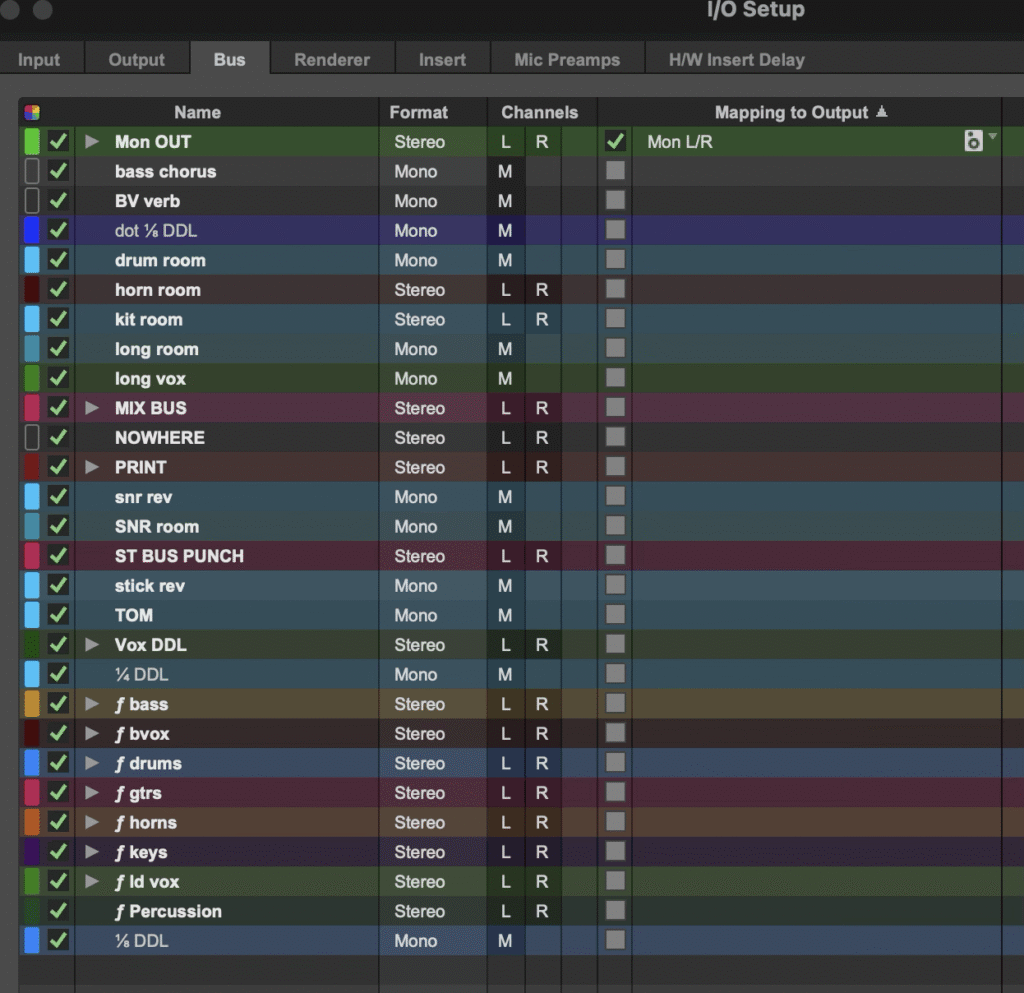
So, when I need to add a send & return in a session, how do I do it w/o opening the IO Setup? I thought you’d never ask.
Create a New Aux Send and Return in one Fell Swoop
This unnamed feature was added in PT11 (2013), along with 64 levels of undo, offline bounce, etc., so it’s hardly new. But it’s a huge time saver, and I’ve met very few people that even know it exists. Maybe you do. If not, it goes like this:
Say you want to add an aux send to a vocal track for a delay (or whatever). You need a send and a return, right? So, if I want to add an echo to the VOX track, I’d click on an unused aux slot on that track and select “new track” (you can select “track” if you want to send to an existing destination track).
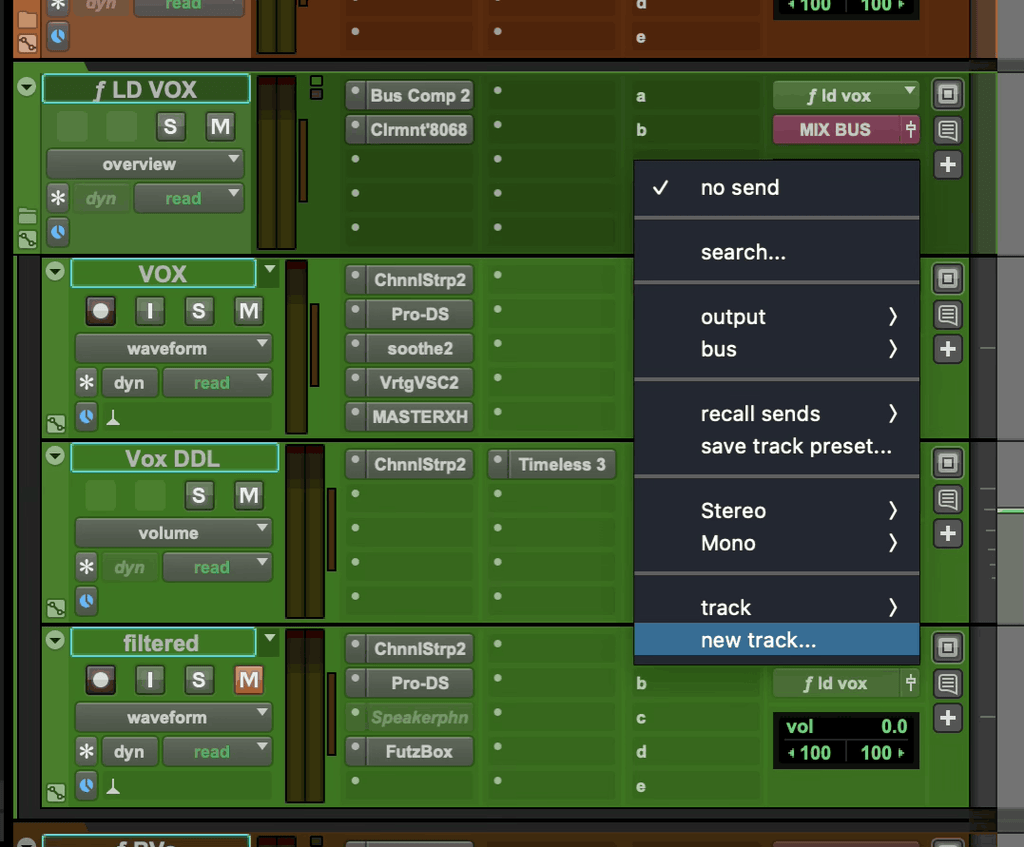
The “new track” dialogue box comes up, and I can set the type/width/name right there, and the new aux send from VOX is named the same as the new return channel – Slap My Face.

The new return channel is placed next to the source track (or first source track if you are adding this new aux to multiple tracks all at once, like a parallel drum crush bus across the kit). You can also uncheck that preference and the new channel will appear at the right/bottom end of the session. The output of the return follows the default in IO setup, so I’ll need to assign the output of that channel to the input of my vocal routing folder track (ƒ LD VOX), but that’s it. I can add it to the Vox group for VCA control, but since I’m working inside a folder, it is already in the folder. I name all my Folder tracks with the prefix “ƒ ”, and VCAs with a prefix “v”.
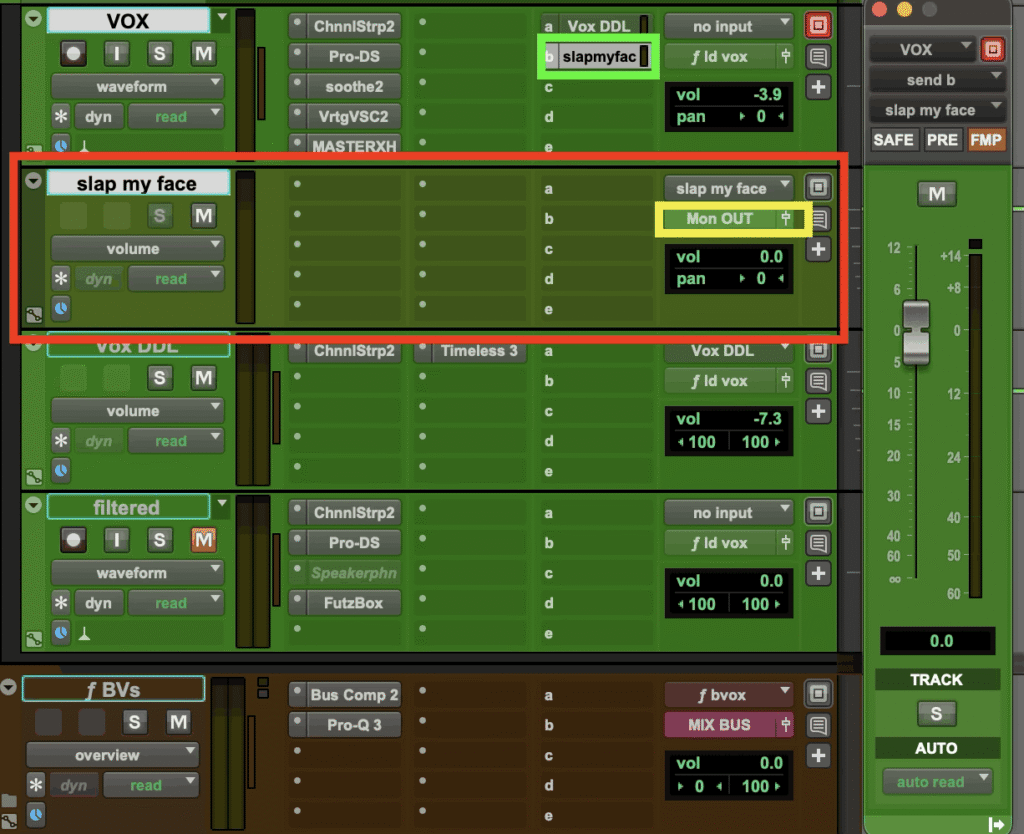
A new send and return track, both named, in one move. Just add plug-ins. Learn this little trick, and you’ll save so much time you can go out to lunch.
Set Aux Sends to 0 dB by Default
In “Settings”, I default aux sends to 0db when instantiated, so it immediately takes effect the next time I hit play. Season to taste and roll on.
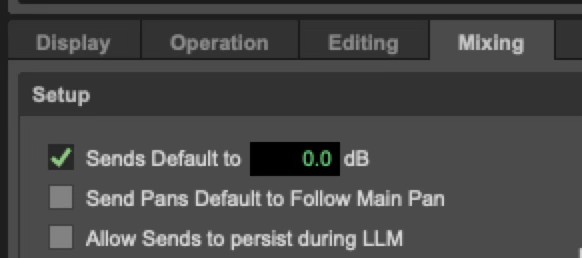
Because of this feature, I never have to stop to open the IO Settings box to: 1) create a bus, 2) create a return channel, 3) assign the input and output as multiple procedures. What you do with the extra time on your hands is anybody’s guess.
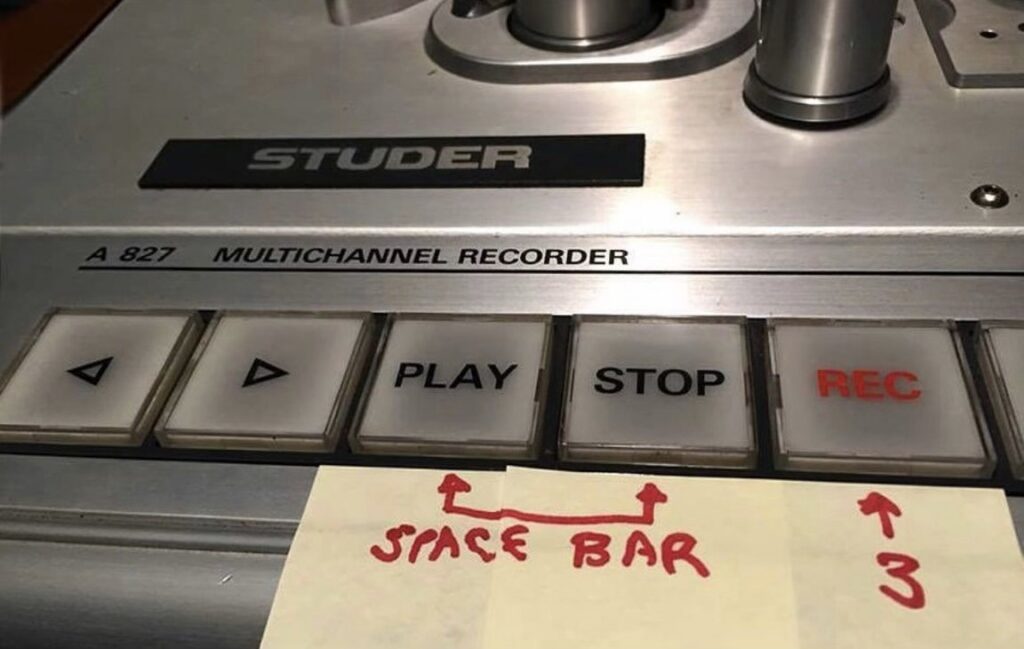
Analog Pro Tools commands
Find Routing Problems With Pro Tools Bus Interrogation
If you get sessions from clients to import into your template, using the bus interrogation feature (since PT10) can speed up discovering any errant busses that are either sending to the wrong place or just going nowhere. If I right-click on the bus “ƒ gtrs”, (the bus that sends all my guitar tracks to the ƒ GTRS routing folder track), and select “Show Only Assignments to ƒ gtrs”, it will show me every track accessing that bus in the session. Try that with a TT patch bay.
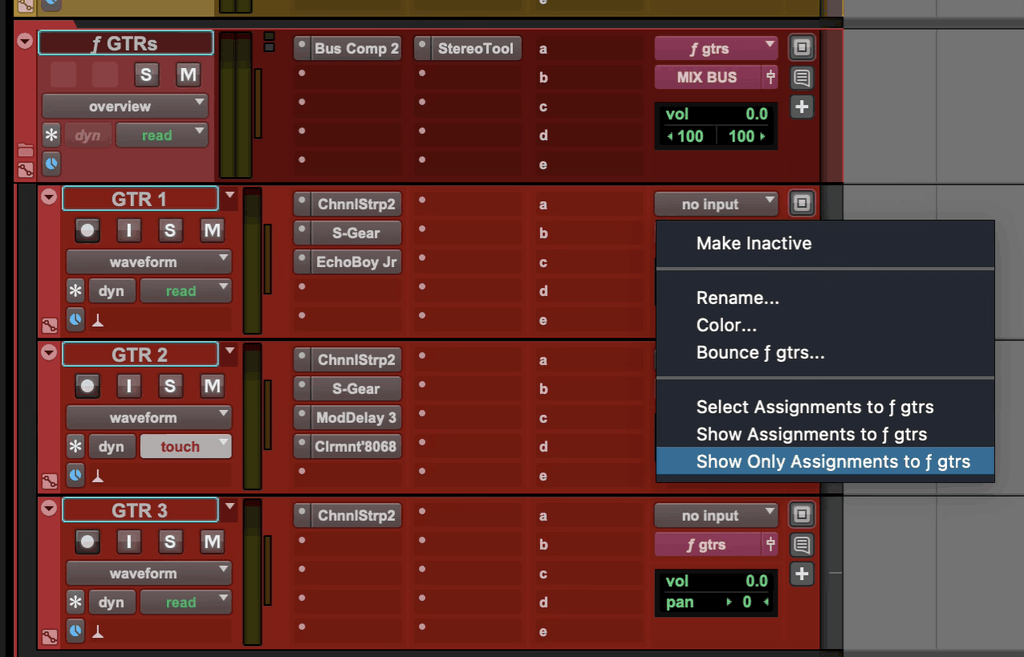
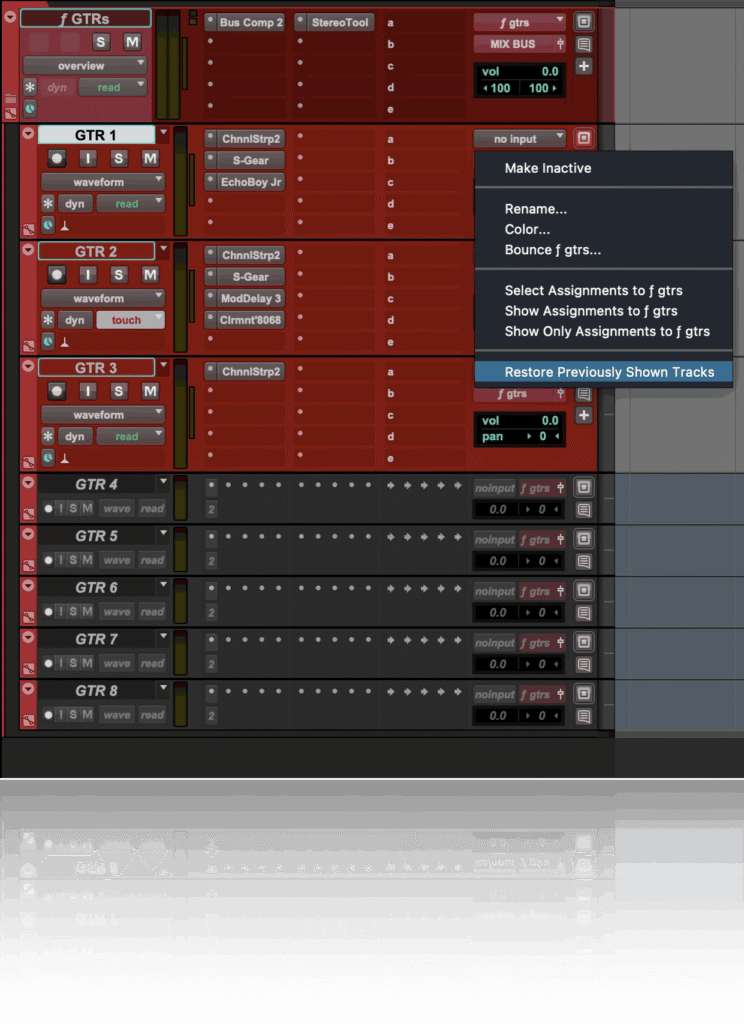
This works for any bus, input, or output – on any track. So, if you’ve got the bass hitting a delay or something unexpected in your session, just go to the offending delay return (or send) on any track and “Show Only Assignments to X” and you can fix it w/o having to go on a time-wasting, groove busting, wild goose chase. Just remember to right click again on the same bus when you’re done and select “Restore Previously Shown tracks” to get back to your session displayed as it was before the interrogation. And yes, the interrogation function will show ALL tracks that are assigned to that bus (even if they are deactivated or hidden), which is a good thing. You can also choose “select” or “show” the assigned tracks in place, but I mostly use “show only” to keep it simple. Try each one, you’ll discover a favorite way of search & destroy.
Take More of Your Life Back
Try these simple but powerful techniques, and you’ll find they add some valuable control and speed to your mix, which is never a bad thing. A shortcut says you’re skipping the work and getting to the goal without putting in any effort. Put some effort into learning one new feature/keyboard/console command a week, and in a few months, you will be a smarter, faster, and better mixer. And you can take more of your life back. There are tons of little time-saving keystrokes and features in Pro Tools (and every DAW) that mostly go overlooked, because they take a little extra time and effort to learn. Invest in yourself and suddenly you’re not working late so much anymore. And don’t call it a short cut – call it what it is – a learned skill.
And remember, the same keyboard strokes you use for creating new tracks (SHIFT+CMD+N) also works in the IO setup when creating busses, inputs, and outputs.
You do use the keyboard commands for new tracks, right?
Further Reading
Learn how Black Lava Studios brought immersive audio home with the help of ASG
Audio professional Steve Schatz partnered with Advanced Systems Group to transform a residential garage into Black Lava Studios, a professional immersive audio facility for Dolby Atmos music, film, sound design, and more.
Black Lava Studios Brings Immersive Audio Home
Learn more about ASG’s Audio solutions:
About the Author
Collyer Spreen is a Senior Solutions Architect with Advanced Systems Group (ASG), specializing in professional audio, Avid Pro Tools workflows, and studio integration. He has helped countless music, broadcast, and post-production professionals design, deploy, and support high-performance Pro Tools systems, with a focus on stability, efficiency, and long-term reliability. Can also ride a bike.
Related Articles
Read More
How Black Lava Studios Brought Immersive Audio Home
Read More
Ethernet Control Surfaces, or How I Stopped Worrying and Learned to Love the Subnet
Read More